How to Remove an Extension from Google Chrome: Step by Step Guide (2026 Update)
Introduction
Extensions make Google Chrome more powerful — they add features, improve productivity, and personalize your browsing experience. However, too many extensions can slow your browser, cause privacy risks, or even show unwanted ads.
If you’ve ever wondered, “How do I remove an extension from Google Chrome?”, this complete guide will help you understand how, when, and why to uninstall or disable them.
We’ll cover everything — from simple removal steps to advanced tips for managing hidden extensions.
Why You Might Want to Remove a Chrome Extension
Extensions can be incredibly useful, but not all are safe or necessary. Over time, they can clutter your browser, drain memory, or compromise your data.
Here are some common reasons to remove them:
- Slower Performance: Multiple active extensions consume RAM and CPU.
- Privacy Concerns: Some extensions secretly track browsing activity.
- Unwanted Pop ups or Ads: Certain addons display intrusive ads.
- Compatibility Issues: Extensions may conflict with websites or each other.
- De cluttering: Removing unused ones keeps your browser cleaner and faster.
How to Check Installed Extensions
Before removing, it’s best to see which extensions you currently have.
Follow these steps:
- Open Google Chrome.
- Click the three dot menu in the top right corner.
- Hover over “Extensions” → then click “Manage Extensions.”
- You’ll see a page displaying all installed extensions with options to enable, disable, or remove them.
Pro Tip: You can also type chrome://extensions/ directly into your address bar to open the Extensions page instantly.
Step by Step: How to Remove an Extension from Chrome
There are two main ways to remove a Chrome extension — through the toolbar or from the settings page. Let’s explore both.
Method 1: Remove from the Toolbar (Quick Method)
- Look at the top right corner of Chrome, next to your profile picture.
- Click the “Extensions” icon (a puzzle piece).
- Find the extension you want to remove.
- Click the three dots beside it → select “Remove from Chrome.”
- Confirm the removal when prompted.
- you may get help from chrome support directly
✅ Result: The extension is permanently deleted from your browser.
Method 2: Remove from Chrome Settings
- Go to the Extensions page (chrome://extensions/).
- Locate the extension you want to delete.
- Click the “Remove” button.
- Confirm your choice by clicking “Remove” again in the popup.
This method is best if you want to review all extensions before deleting them.
Method 3: Temporarily Disable an Extension
If you’re unsure about deleting an extension completely, you can disable it instead.
- Open chrome://extensions/.
- Toggle off the switch next to the extension.
This keeps it installed but inactive until you decide to turn it back on.
How to Remove Hidden or Stubborn Extensions
Sometimes, an extension refuses to go away — especially if it’s malware or installed by another program.
Here’s how to remove such persistent extensions:
- Restart Chrome in Safe Mode (Incognito):
- Open a new Incognito window (Ctrl + Shift + N).
- See if the unwanted extension still appears.
- If not, it’s likely a normal extension; if yes, it could be malicious.
- Use Chrome’s Cleanup Tool:
- Type chrome://settings/cleanup in the address bar.
- Click “Find harmful software.”
- Chrome will automatically detect and remove malicious programs.
- Check Installed Programs on Your Computer:
- On Windows: Open Control Panel → Programs and Features.
- On macOS: Go to Applications folder.
- Uninstall any suspicious apps that may have installed the extension.
- Reset Chrome Settings (if all else fails):
- Go to chrome://settings/reset.
- Click “Restore settings to their original defaults.”
Note: Resetting will remove all extensions, themes, and temporary data, but your bookmarks and passwords will remain safe.
Tips for Managing Extensions Wisely
- Install only from trusted sources: Always use the Chrome Web Store.
- Review permissions carefully: Avoid extensions asking for unnecessary data access.
- Regularly audit extensions: Visit chrome://extensions/ every few weeks.
- Keep Chrome updated: New versions fix security vulnerabilities.
- Limit to essentials: Only keep what you actively use daily.
Advantages of Removing Unwanted Extensions
- Faster Browsing: Less load on RAM and CPU.
- Better Security: Reduces data exposure.
- Cleaner Interface: Less clutter in the toolbar.
- Improved Stability: Fewer conflicts between add ons.
Common Mistakes to Avoid
- Removing essential extensions (like password managers) by accident.
- Installing the same extension again from an unverified source.
- Ignoring permissions before reinstalling.
Frequently Asked Questions (FAQs)
- Can I remove extensions from my phone’s Chrome browser?
No. Chrome mobile (Android/iOS) doesn’t support extensions. You can only remove them from the desktop version.
- Why can’t I remove some extensions?
Some are installed by your organization or another program. You’ll need administrator rights to delete them.
- Will removing an extension delete my data?
Yes, in most cases, all stored data from that extension is erased once it’s removed.
- How do I know if an extension is unsafe?
Check for:
- Unusual pop ups or redirects
- Heavy RAM usage
- Permissions that seem unrelated to its purpose
- Can I reinstall an extension later?
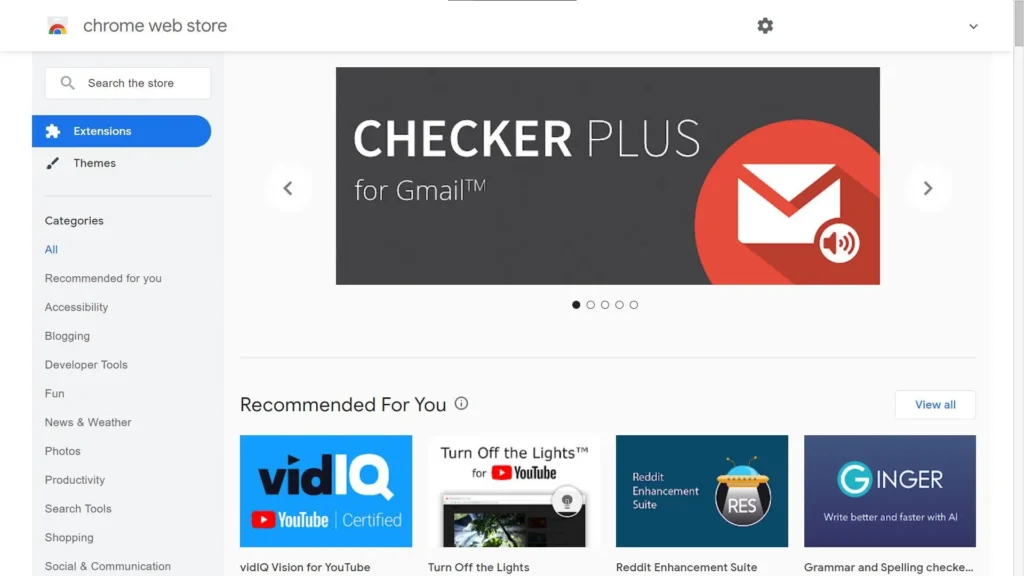
Absolutely! Visit the Chrome Web Store, search for it, and click “Add to Chrome.”
Conclusion
Managing Chrome extensions wisely keeps your browser secure, fast, and efficient. Removing unnecessary or suspicious extensions ensures smoother browsing and protects your privacy.
Whether you’re decluttering your browser or tackling stubborn malware extensions, following this guide guarantees you’re in control of your Chrome experience.
Key Takeaway:
Keep your browser light, install responsibly, and regularly review your extensions for a safer, faster, and more private online journey.