Disk Read Error Steam: 10 Proven Fixes for the Steam Disk Error in 2026
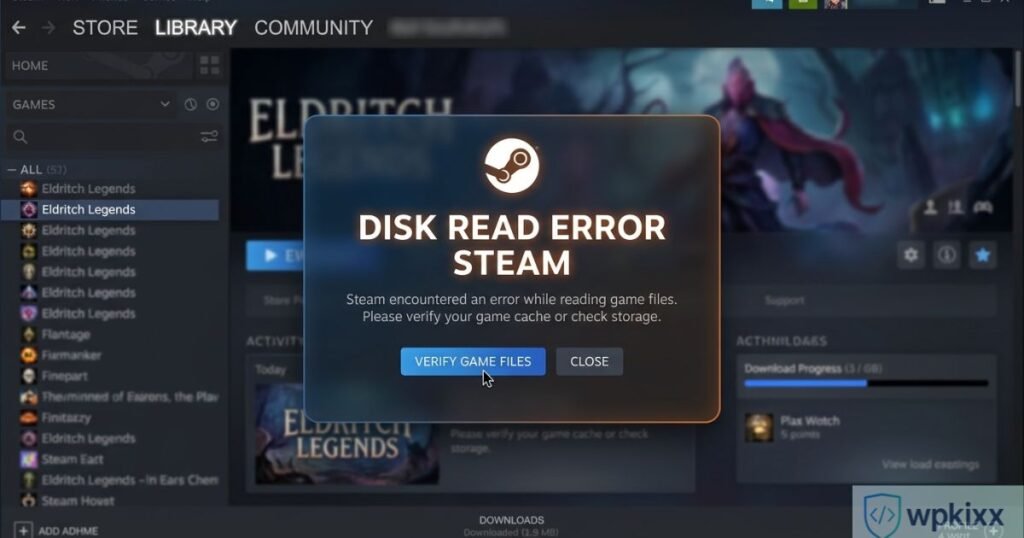
The disk read error Steam — appearing as “An error occurred while installing [game]: Disk read error” or “Disk write error” — is a Steam download and installation error that prevents games from being installed, updated, or verified correctly on your computer. The Steam disk read error and disk write error are among the most commonly reported Steam issues in 2026, affecting users across Windows 10, Windows 11, and Mac with various storage configurations. Despite the alarming-sounding error message, the Steam disk error is most often caused by fixable issues including corrupted download cache, insufficient disk permissions, antivirus interference, or fragmented disk space — rather than actual hardware failure. This guide covers 10 proven fixes for the disk read error Steam from simplest to most advanced.
1. What Causes Steam Disk Read Error?
Cause | Description | Fix Category |
|---|---|---|
Corrupted download cache | Steam download cache corrupted | Clear Steam cache |
Disk permissions | Steam lacks write access to install folder | Run as admin / fix permissions |
Antivirus blocking | AV quarantines game files during install | AV exclusion |
Disk full or fragmented | Insufficient space or fragmented sectors | Disk cleanup / defrag |
Bad disk sectors | Physical disk damage | CHKDSK |
Corrupt game files | Game files corrupted from previous install | Verify game files |
2. Fix 1: Clear Steam Download Cache
Corrupted Steam download cache is the most common cause of disk read error Steam
- Open Steam > click Steam menu (top left) > Settings
- Go to Downloads > click “Clear Download Cache”
- Confirm and wait for Steam to restart
- Sign back in and retry the game download/update
3. Fix 2: Run Steam as Administrator
Steam needs write permissions to install game files — running as admin resolves permission-based disk write errors
- Right-click Steam shortcut > “Run as administrator”
- To make permanent: right-click Steam.exe > Properties > Compatibility > check “Run this program as an administrator”
4. Fix 3: Verify Game File Integrity
Corrupted game files cause Steam disk read errors during launch or update:
- Steam Library > right-click the problem game > Properties
- Select “Local Files” tab > click “Verify integrity of game files”
- Steam will scan and re-download any corrupted or missing files automatically
5. Fix 4: Check Disk Space
Insufficient disk space causes Steam disk write errors mid-download:
- Ensure at least 15% free space on the drive where Steam games are installed
- Delete unused games: Steam Library > right-click game > Manage > Uninstall
- Move Steam library to a larger drive: Steam > Settings > Storage > Add Drive
6. Fix 5: Change Steam Library Folder
Moving the Steam library to a different drive or folder often resolves persistent disk read errors Steam
- Steam > Settings > Storage > click “+” to add a new storage location
- Select a different drive or folder with sufficient free space
- Move affected game: right-click game in library > Manage > Move install folder
7. Fix 6: Disable Antivirus or Add Steam Exclusion
Antivirus software scanning and blocking game files causes Steam disk errors
- Add Steam installation folder (default: C:\Program Files (x86)\Steam) to antivirus exclusions
- Add your Steam library folder to exclusions
- Windows Defender: Windows Security > Virus & threat protection > Exclusions > Add folder
8. Fix 7: Run CHKDSK to Check Disk Health
Bad disk sectors cause Steam disk read errors that no amount of software fixing will permanently resolve:
chkdsk C: /f /r
- Open Command Prompt as Administrator
- Replace C: with the drive letter where Steam games are installed
- Restart when prompted — CHKDSK runs before Windows boots and repairs bad sectors
9. Fix 8: Repair Steam Installation
Corrupted Steam client files cause widespread disk errors Steam
C:\Program Files (x86)\Steam\bin\SteamService.exe /repair
- Run this command in Command Prompt as Administrator
- Alternatively: Control Panel > Programs > Steam > Repair (if option available)
10. Fix 9: Reinstall Steam
If all other fixes fail, a clean Steam reinstall resolves deep installation corruption causing disk read errors
- Back up game files: Steam > Settings > Storage > backup games (optional)
- Uninstall Steam via Settings > Apps
- Download fresh installer from store.steampowered.com
- Reinstall to default location and test game downloads
11. Fix 10: Check Drive Health with CrystalDiskInfo
For persistent Steam disk read errors on a specific drive, check actual drive health:
- Download CrystalDiskInfo (free, reputable disk health tool)
- Run and check drive status — “Good” = healthy; “Caution” or “Bad” = drive failing
- If drive shows “Caution” or “Bad”: back up all data immediately and replace the drive
Final Thoughts: Fixing Steam Disk Read Error in 2026
The disk read error Steam is almost always fixable without hardware replacement — start with clearing Steam download cache and running as administrator (fixes 90% of cases), then work through disk permissions, antivirus exclusions, and CHKDSK if needed. Only if CrystalDiskInfo shows drive failure is hardware replacement actually required. For more gaming and tech troubleshooting guides, visit wpkixx.com.